
If you need the same sitter on an ongoing basis — a weekly dog walk, biweekly drop-ins — a recurring schedule sets it up once and handles the rest automatically.
Where to find it
Start a normal booking with your sitter and, at the Booking Type step, choose Regular Schedule instead of a one-time booking.
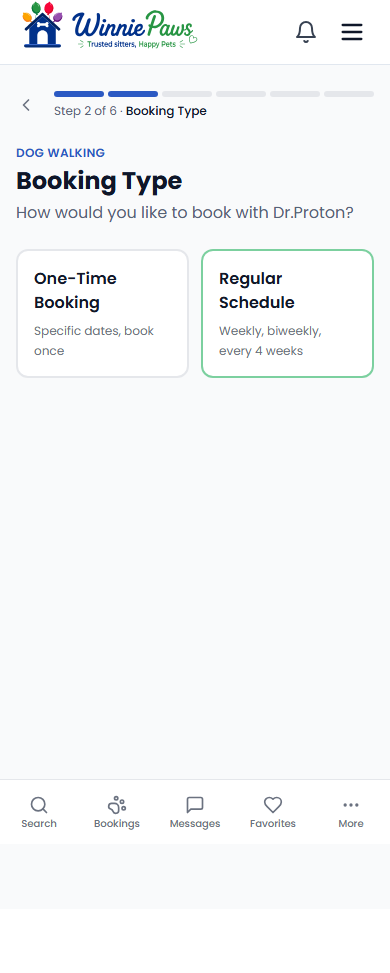
If you haven't completed a booking with this sitter before, we'll first ask if you'd like a free Meet & Greet — recommended, but you can skip straight to scheduling if you'd rather.
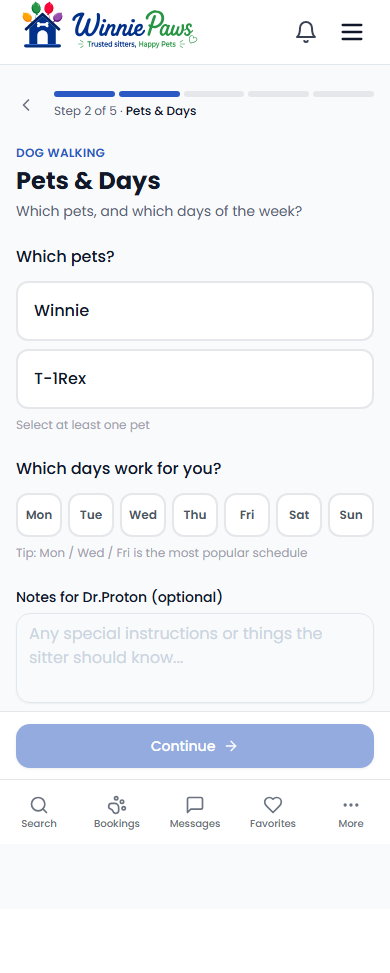
1. Pets & days
Pick your pets, then which days work for walks/drop-ins (or which day a stay starts and how many nights, for boarding/house sitting).
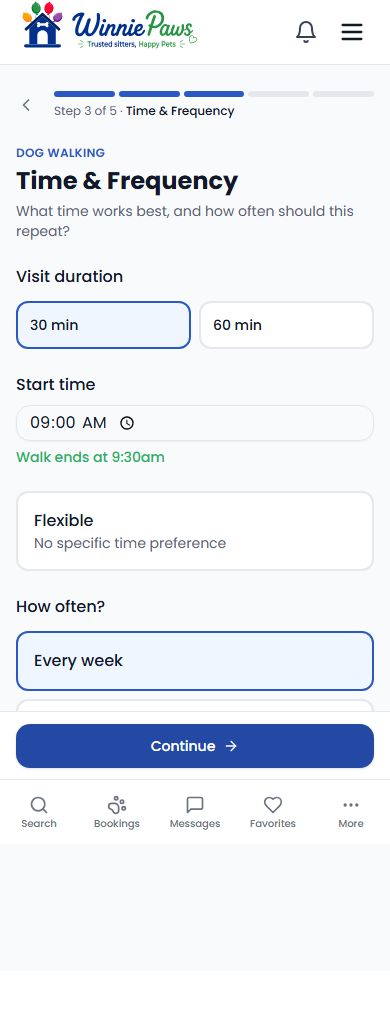
2. Time & frequency
Set your visit duration and times, then choose how often it repeats: every week, every 2 weeks, or every 4 weeks.
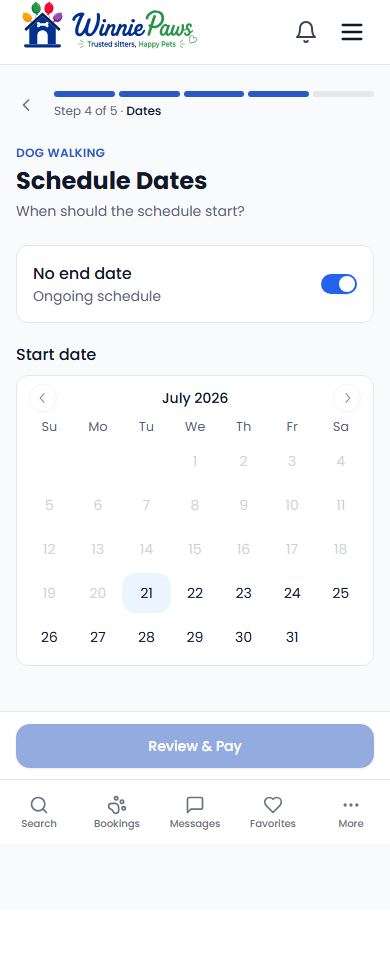
3. Schedule dates
Pick a start date. Leave it open-ended ("no end date") for an ongoing schedule, or set a specific end date.
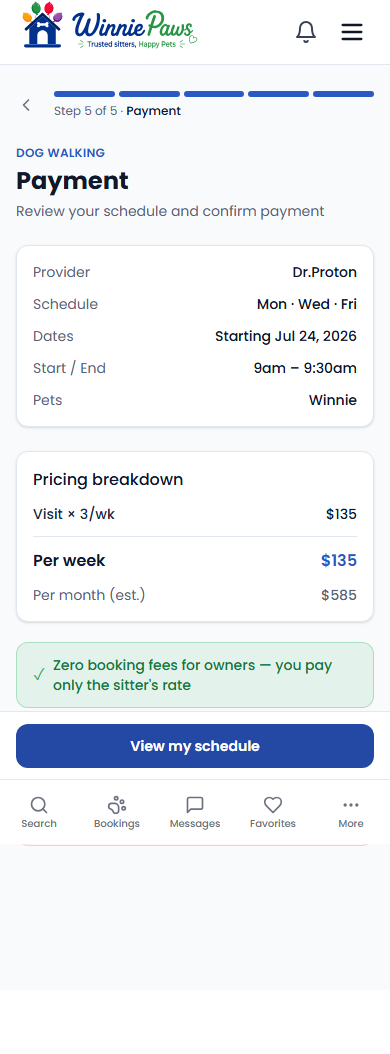
4. Payment
Review the per-visit and estimated monthly cost, then confirm. Setting up the schedule only saves your card — nothing is charged yet. Your sitter has 24 hours to accept the whole schedule, and each individual visit is then billed automatically about 48 hours before it happens.
You can review or manage an active recurring schedule any time from My Schedules in your dashboard.